
Choose the document task
Move directly to merge, split, compression, rotation, extraction or images to PDF. Choose the task that fits the material you are working with.
Free VISINVOKE utility
Choose the task.
Arrange the inputs.
Review the settings.
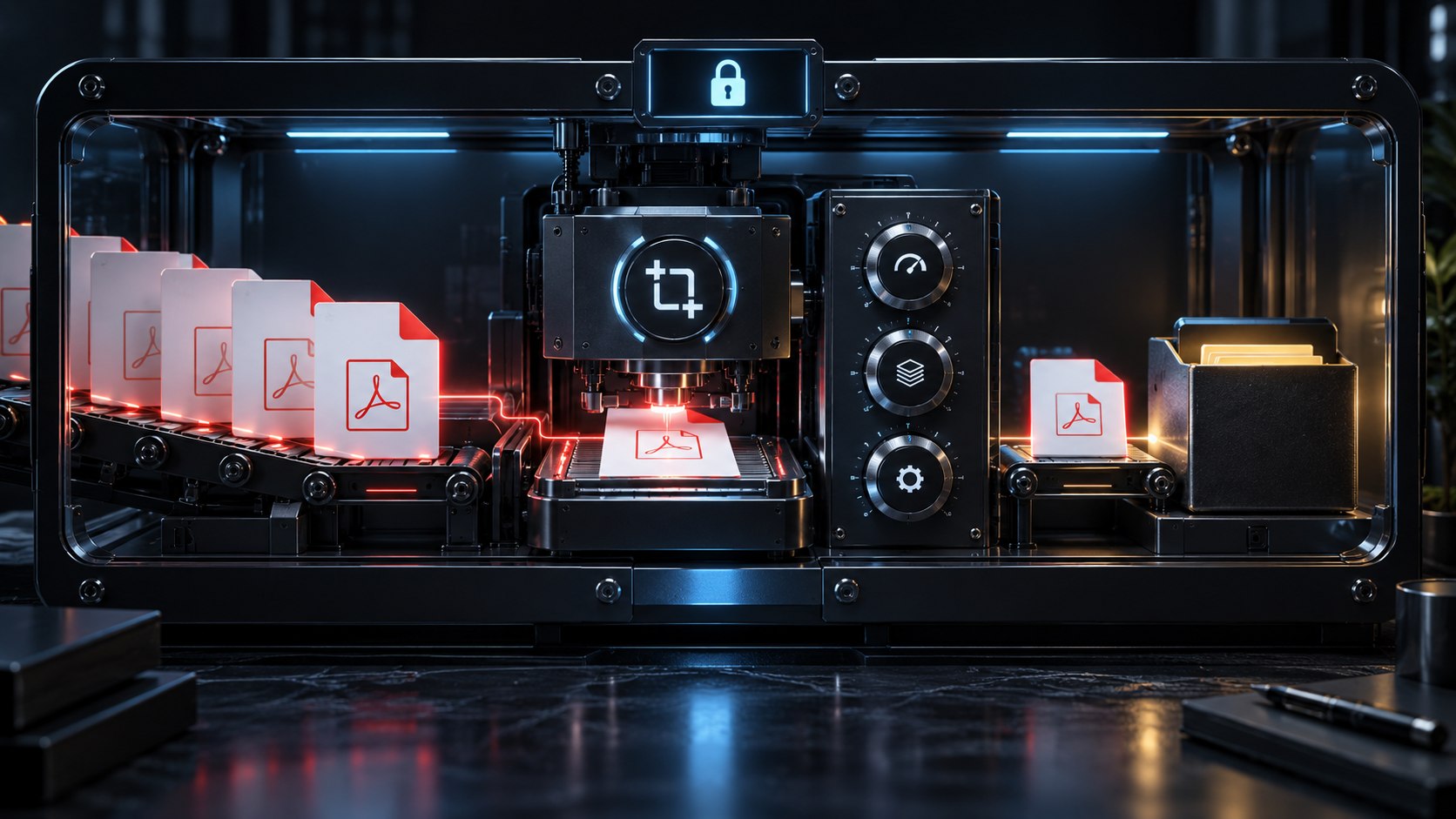
Everyday document choices
Inputs, order and page settings in one interface.
Move directly to merge, split, compression, rotation, extraction or images to PDF. Choose the task that fits the material you are working with.
Bring the files into the workspace, arrange their order and review the relevant settings. Keep the document choices together instead of losing track of them.
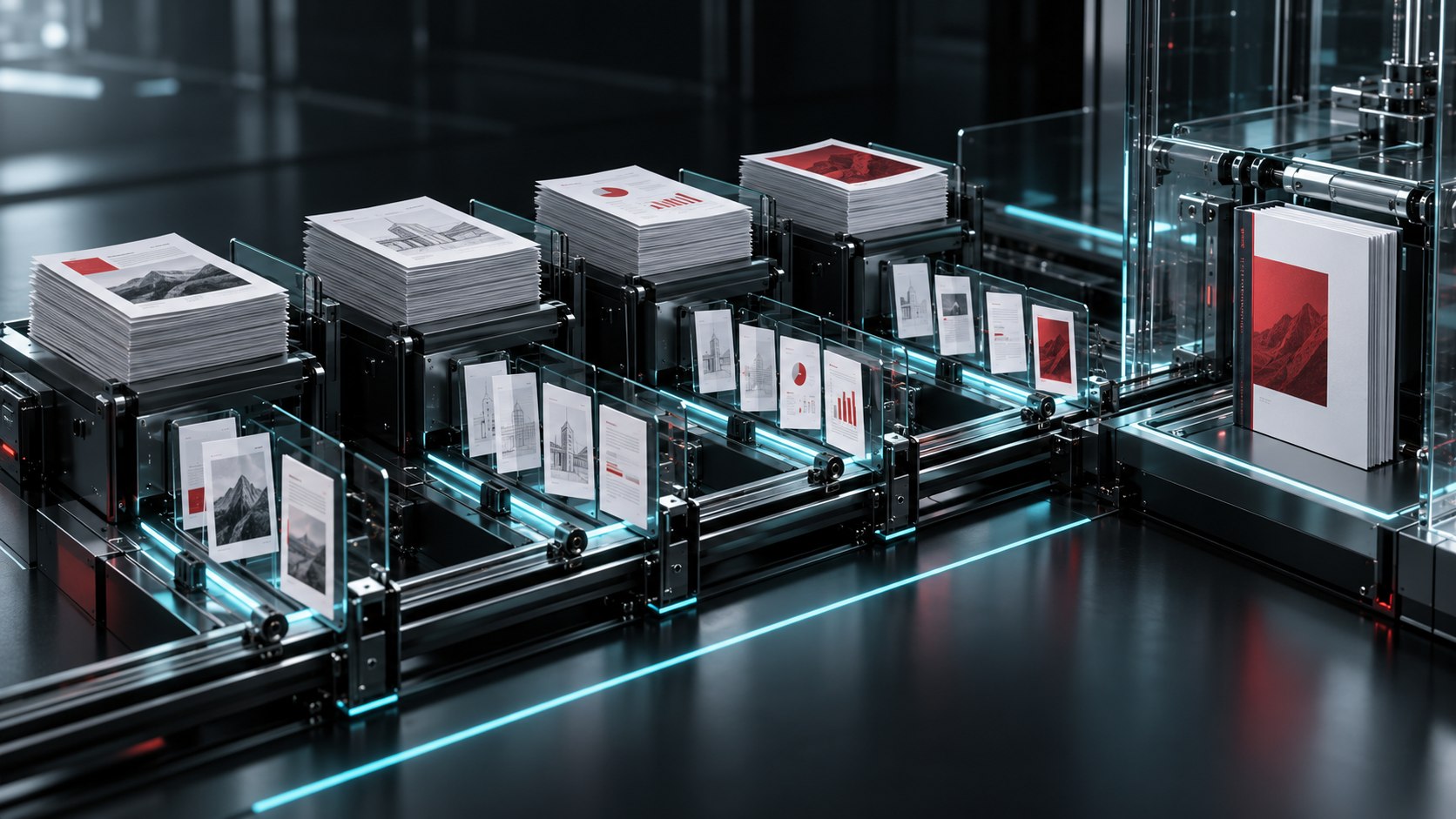
The reading order matters
The illustration brings several stacks of pages into a single ordered sequence. Different source documents stay visible along the path.
For a merge task, choose the PDF inputs and arrange their order. Review that sequence against the way you want the material to be read.
The task workspace
Document inputs and settings for everyday PDF tasks.
Choose PDF files for a merge task. Arrange the inputs in the order you want to use, with the sequence visible in one workspace.
Choose a PDF and the pages for a split task. Focus the selection on the sections you want to work with.
Select maximum quality, balanced or maximum compression. Make the quality and file-size preference explicit in the task settings.
Choose the pages and orientation for a rotation task. Keep the page choice and the intended direction together.
Select the pages you want to extract from a PDF. Use the page choices to define the scope of the task.
Choose images for an images-to-PDF task. Bring the inputs into the document workspace and set up the job.
Arrange the files before choosing the next step. Check the sequence against the order in which you want the material to be read.
Work with page selections for splitting, rotation or extraction. Review which part of the document the settings refer to.
Open PDF Toolkit through VISINVOKE Desktop Control Centre. Use a dedicated utility window alongside your desktop workspace.
PDF Toolkit is a free VISINVOKE utility. Create a free account or sign in and use your account installer page for DCC.
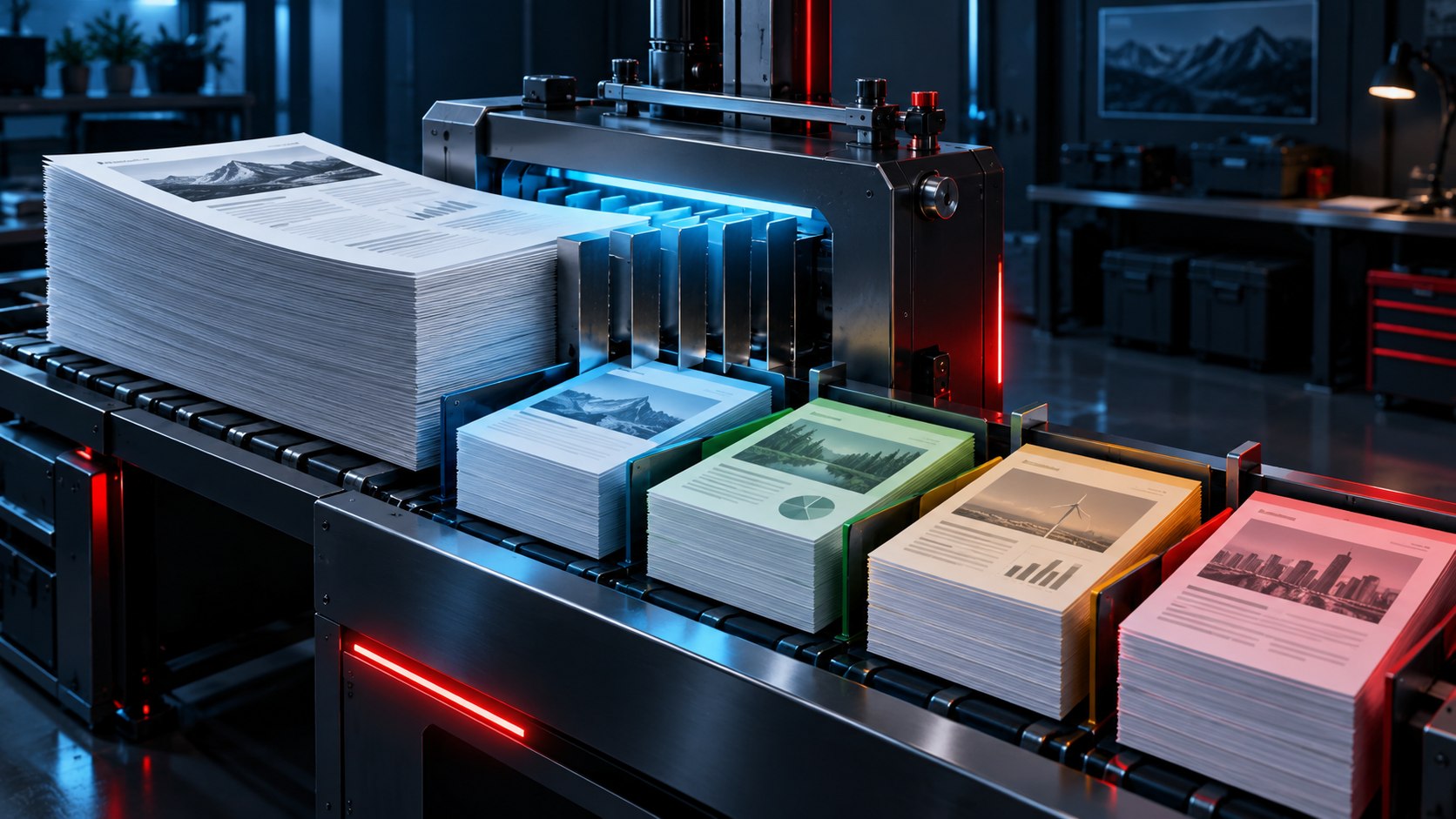
Work with the right pages
The illustration divides a document into smaller groups of pages. Each group is visually distinct from the rest of the material.
Choose the page settings for a split or extraction task. For rotation, check both the pages and the intended orientation. Review which part of the document the choices refer to.
A direct setup workflow
Keep each choice tied to the task you selected.
Add the PDF files or images relevant to the task. Begin with the material you want to work with.
Select merge, split, compress, rotate, extract pages or images to PDF. Use the settings for that task.
Arrange the input sequence for merging or choose the pages for splitting, rotation or extraction. Keep the scope clear.
Check the selected files, their order and the task preferences. For compression, review the quality and size choice.
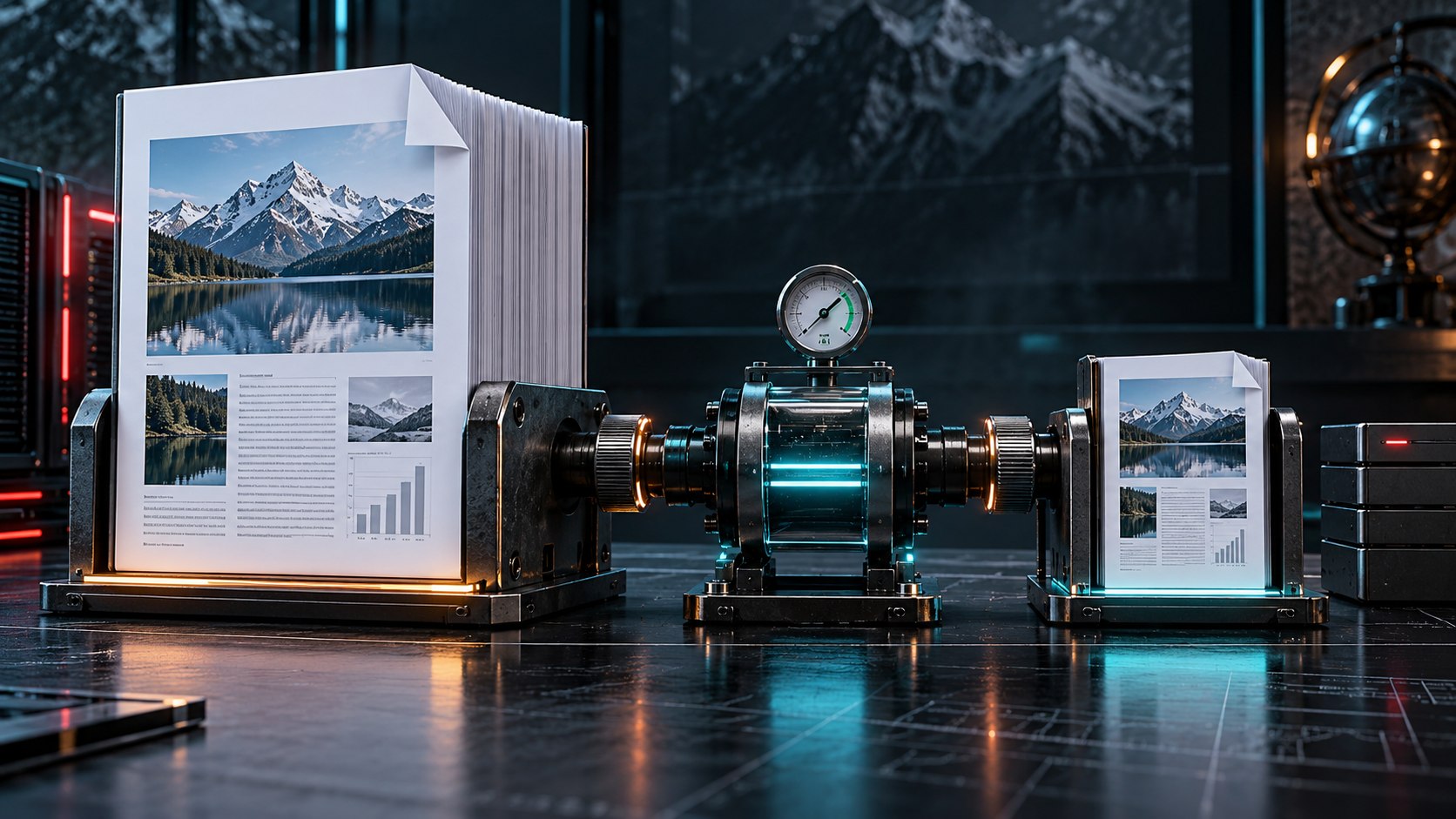
Choose the balance
The illustration places a larger and a smaller document beside a compression control. It presents the idea of balancing document size and quality.
Choose maximum quality, balanced or maximum compression in the task settings. Keep the document and its intended use in mind when selecting the preference.
Review the setup
Files, pages, preferences and access.
Review the order of the PDF inputs for a merge task. Make sure the sequence matches the way the material is meant to be read.
For split, rotate or extract tasks, review the pages named in the settings. Keep the chosen part of the document clear.
Choose maximum quality, balanced or maximum compression. Review that preference alongside the document you selected.
Use the account route to Desktop Control Centre. Open PDF Toolkit in its dedicated desktop utility window.
Your workspace and related utilities
Open the desktop workspace through your account.
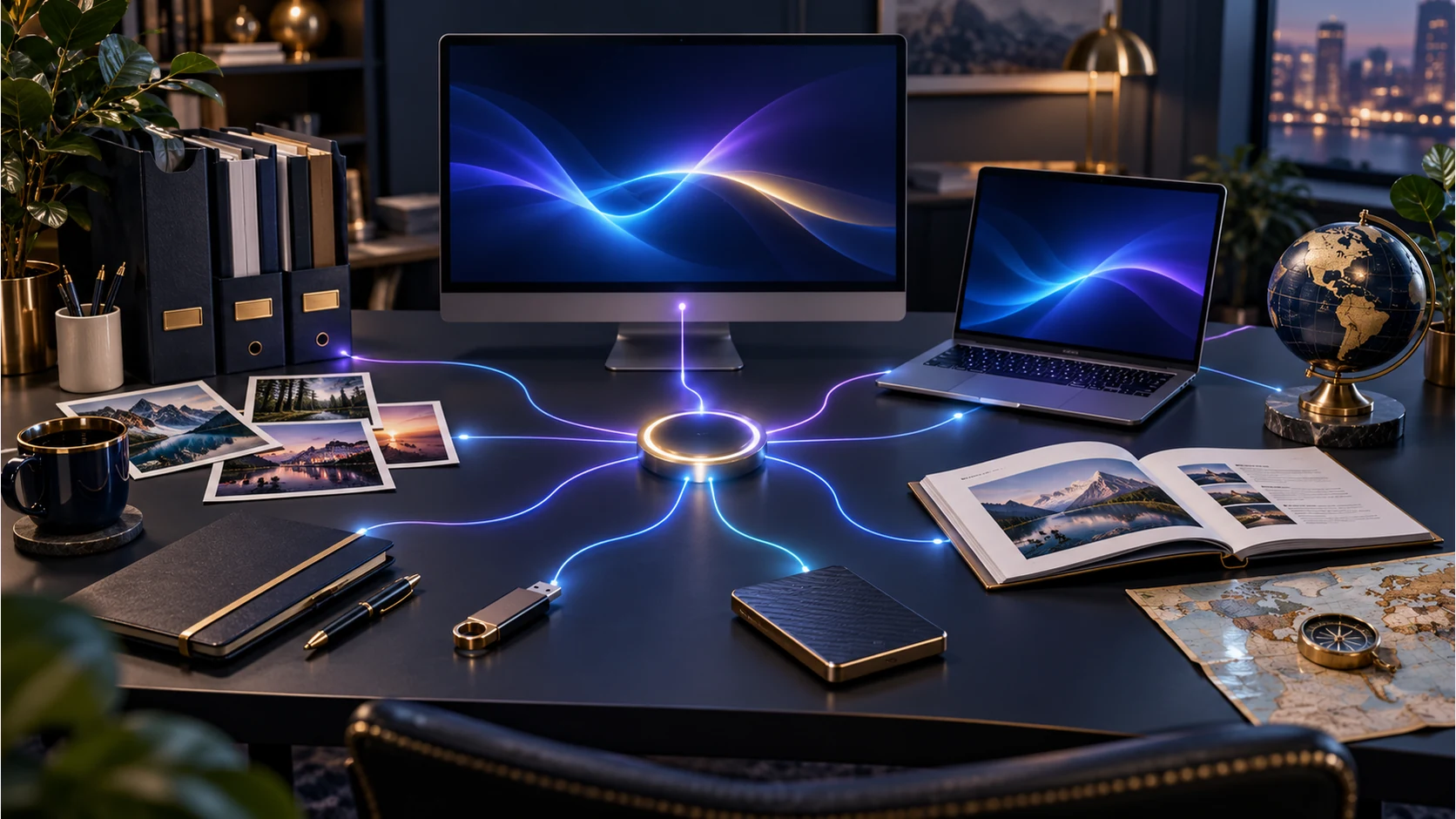
Open PDF Toolkit in your desktop workspace. Get Desktop Control Centre through your account installer page.
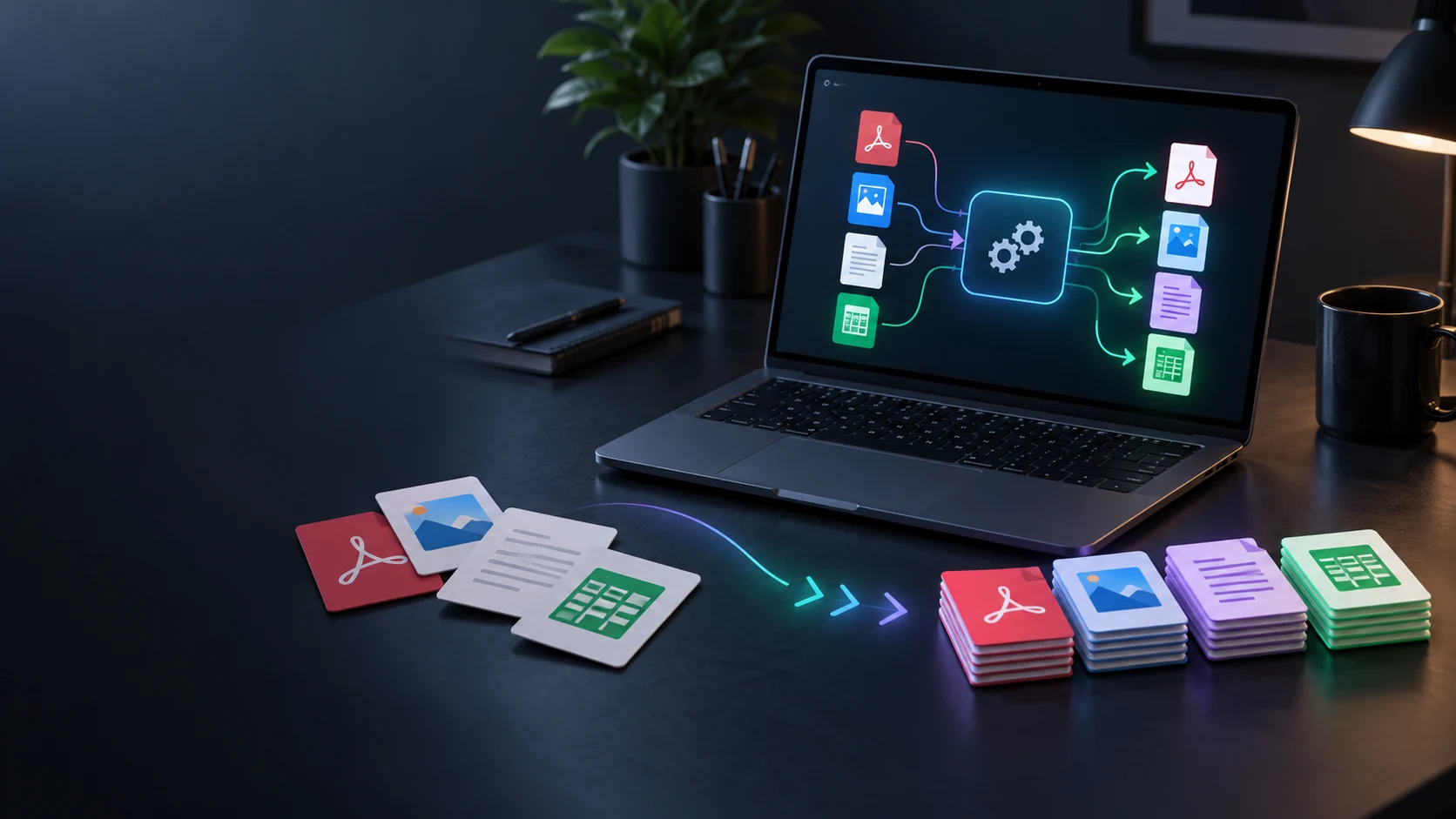
Explore the separate VISINVOKE File Converter utility for documents and images. Keep PDF Toolkit task choices in its focused workspace.
Product illustrations show document organisation and task-setting concepts.
Questions and answers
Task choices, input order, page settings and access.
The task choices cover merge, split, compress, rotate, extract pages and images to PDF. Each task has its own inputs and settings.
Choose the PDF inputs, arrange their sequence and review the order. Put the material in the order in which you want the document to be read.
The interface offers maximum quality, balanced and maximum compression. Choose the preference that suits the document and its intended use.
Use the page settings for the selected task. Review the selection for splitting, rotation or extraction before moving on.
Open it through VISINVOKE Desktop Control Centre in a dedicated desktop window. Get DCC through your VISINVOKE account installer page.
PDF Toolkit is a free VISINVOKE utility with a VISINVOKE account. Create a free account or sign in to use the account route to DCC.
Continue in VISINVOKE
Create a free VISINVOKE account or sign in. Get Desktop Control Centre through your account installer page and open PDF Toolkit.
PDF Toolkit is a free utility with a VISINVOKE account. Use a dedicated desktop window for your document task choices.